
You've got a folder full of raw clips and a posting deadline in two hours. Picking the best video editing software for social media content shouldn't take longer than the edit itself, but with dozens of apps claiming to be the fastest or the smartest, most creators end up testing three tools and finishing none of them. That indecision is the real bottleneck, not your camera or your ideas.
This article cuts through that by ranking five tools based on what actually matters for short-form content: caption automation, export speed, template flexibility, and how well each one handles the pacing that keeps viewers from scrolling past. We tested each against real posting workflows, not just feature lists, so you can match the software to your actual output volume instead of guessing.
Below, you'll find a breakdown of pricing tiers, mobile versus desktop performance, and which platform fits solo creators versus teams pushing daily content. If you're scaling a personal brand or a company account and editing is eating hours you don't have, this comparison will point you toward the tool worth building your workflow around, or show you where a managed production system makes more sense than another app subscription.
1. CapCut
CapCut sits at the top of this list because it's built specifically for short-form vertical video, not adapted from desktop software that came later to mobile. Owned by ByteDance, it shares DNA with TikTok's internal editing tools, which explains why its auto-captions, trend templates, and beat-syncing feel purpose-made for Reels, Shorts, and TikTok rather than bolted on as an afterthought.
Key features
What sets CapCut apart is speed. Auto-generated captions land with solid accuracy straight out of the box, and the template library updates constantly with formats pulled from trending sounds and edits. You also get keyframe animation, green screen, and a stock library, all inside a mobile app that doesn't lag on mid-range phones.
- Auto-captions with word-level timing
- Trend-based templates refreshed weekly
- Built-in stock footage and audio library
- Cross-platform sync between mobile and desktop
Best for
CapCut suits solo creators and small teams who need to publish daily without opening a laptop. It's the fastest path from raw footage to a posted clip, especially if your workflow already lives on your phone.
If your bottleneck is turnaround time, not production value, CapCut removes more friction than any other tool on this list.
Pricing
The free tier covers most core editing, captions, and templates. CapCut Pro runs roughly $7.99 per month or $59.99 annually, unlocking premium effects, extra cloud storage, and faster export queues.
Pros and cons
| Pros | Cons |
|---|---|
| Fast, mobile-first workflow | Limited color grading depth |
| Strong auto-caption accuracy | Data ownership concerns given ByteDance ties |
| Free tier is genuinely usable | Templates can look generic at scale |
| Frequent trend updates | Less suited to long-form or brand-heavy edits |
2. Adobe Premiere Pro
Premiere Pro is the industry standard for a reason: it handles everything from a 15-second Reel to a full brand documentary without switching software. If your social content pulls from the same footage used in ads, YouTube videos, or client deliverables, Premiere keeps that entire pipeline in one timeline instead of forcing you to rebuild edits across multiple apps.
Key features
Premiere's strength is multi-format flexibility. You can reframe a horizontal interview into three vertical cutdowns without re-editing from scratch, and Adobe's Sensei AI now handles auto-reframe, scene edit detection, and text-based editing that lets you cut by transcript instead of scrubbing timelines.
- Auto-reframe for vertical and square exports
- Text-based, transcript-driven editing
- Deep integration with After Effects and Photoshop
- Multicam sync for interviews and podcasts
Best for
This fits teams and agencies producing content across multiple formats and platforms, not solo creators posting one quick clip a day.
Premiere rewards people who need one edit to become five different assets, not people who need speed above everything else.
Pricing
Premiere Pro costs $22.99 per month as a standalone app, or roughly $59.99 monthly bundled into the full Creative Cloud suite.
Pros and cons
| Pros | Cons |
|---|---|
| Industry-standard color and audio tools | Steep learning curve for beginners |
| Seamless Creative Cloud integration | Resource-heavy on older machines |
| Handles complex, multi-format projects | Overkill for simple daily posts |
3. DaVinci Resolve
DaVinci Resolve comes from Blackmagic Design, the same company behind cinema cameras used on real film sets, and that heritage shows in its color grading engine. It's the tool professional colorists reach for, which makes it overkill for a quick Reel but unmatched when your social content needs to match a polished brand look across every post.
Key features
Resolve's node-based color system gives you control that Premiere and CapCut simply don't offer, and Fairlight, its built-in audio suite, handles mixing without needing a separate app.
- Node-based color grading with scopes
- Fairlight audio mixing built into the same timeline
- Fusion page for motion graphics and VFX
- Full-featured free version with no watermark
Best for
This suits creators and brands who care deeply about visual consistency, especially those producing polished, cinematic short-form content rather than fast, disposable clips.
Resolve rewards patience with a color and audio toolkit that no other app on this list can match.
Pricing
The free version is remarkably complete. DaVinci Resolve Studio costs a one-time $295, with no subscription required.
Pros and cons
| Pros | Cons |
|---|---|
| Best-in-class color grading | Steep learning curve |
| One-time purchase, no subscription | Slower for rapid daily turnaround |
| Free version has almost everything | Heavier hardware requirements |
4. Canva Video
Canva built its reputation on graphic design, and that background shows in how it approaches video: less about frame-by-frame precision, more about fast, on-brand assembly. If you're already using Canva for thumbnails, carousels, or slide decks, adding video keeps every asset inside one design system instead of juggling separate apps for stills and motion.
Key features
Magic Media generates clips and B-roll from text prompts, and the Brand Kit locks fonts, colors, and logos across every video your team touches. Drag-and-drop templates make it the fastest option here for teams without a dedicated editor.
- Brand Kit for consistent fonts, colors, logos
- Magic Media AI clip and image generation
- Resize Magic for instant format changes
- Team folders with shared asset libraries
Best for
Marketing teams and non-editors who need on-brand social clips without hiring a specialist fit Canva best.
Canva trades editing depth for design consistency, which matters more than raw control for many marketing teams.
Pricing
A free plan covers basics. Canva Pro runs $15 monthly; Teams plans scale per seat.
Pros and cons
| Pros | Cons |
|---|---|
| Fast, on-brand templates | Limited timeline precision |
| Strong team collaboration tools | Weak for advanced color or audio work |
| Generous free tier | Struggles with longer, complex edits |
5. Wondershare Filmora
Filmora fills the gap between CapCut's speed and Premiere's depth, giving solo creators a desktop editor that feels approachable without stripping out real controls. It's built for people who outgrew mobile apps but don't need a professional colorist's toolkit, making it a natural middle step for creators scaling past basic edits.
Key features
Filmora leans on AI-powered shortcuts that handle grunt work automatically, including silence removal, smart cutout, and one-click color matching across clips shot on different devices.
- AI copywriting for captions and titles
- Auto-sync for music and beat markers
- Motion tracking for text and stickers
- Built-in stock library and royalty-free music
Best for
This suits growing creators who need more polish than CapCut offers but don't want Premiere's learning curve or price tag.
Filmora works best for creators ready to level up production value without leveling up complexity.
Pricing
A free version exports with a watermark. The annual plan runs $49.99, with lifetime access available for $79.99.
Pros and cons
| Pros | Cons |
|---|---|
| Gentle learning curve | Less powerful than Resolve or Premiere |
| Strong AI editing shortcuts | Watermark on free exports |
| Affordable lifetime option | Smaller template library than CapCut |
Which editor fits your social media goals
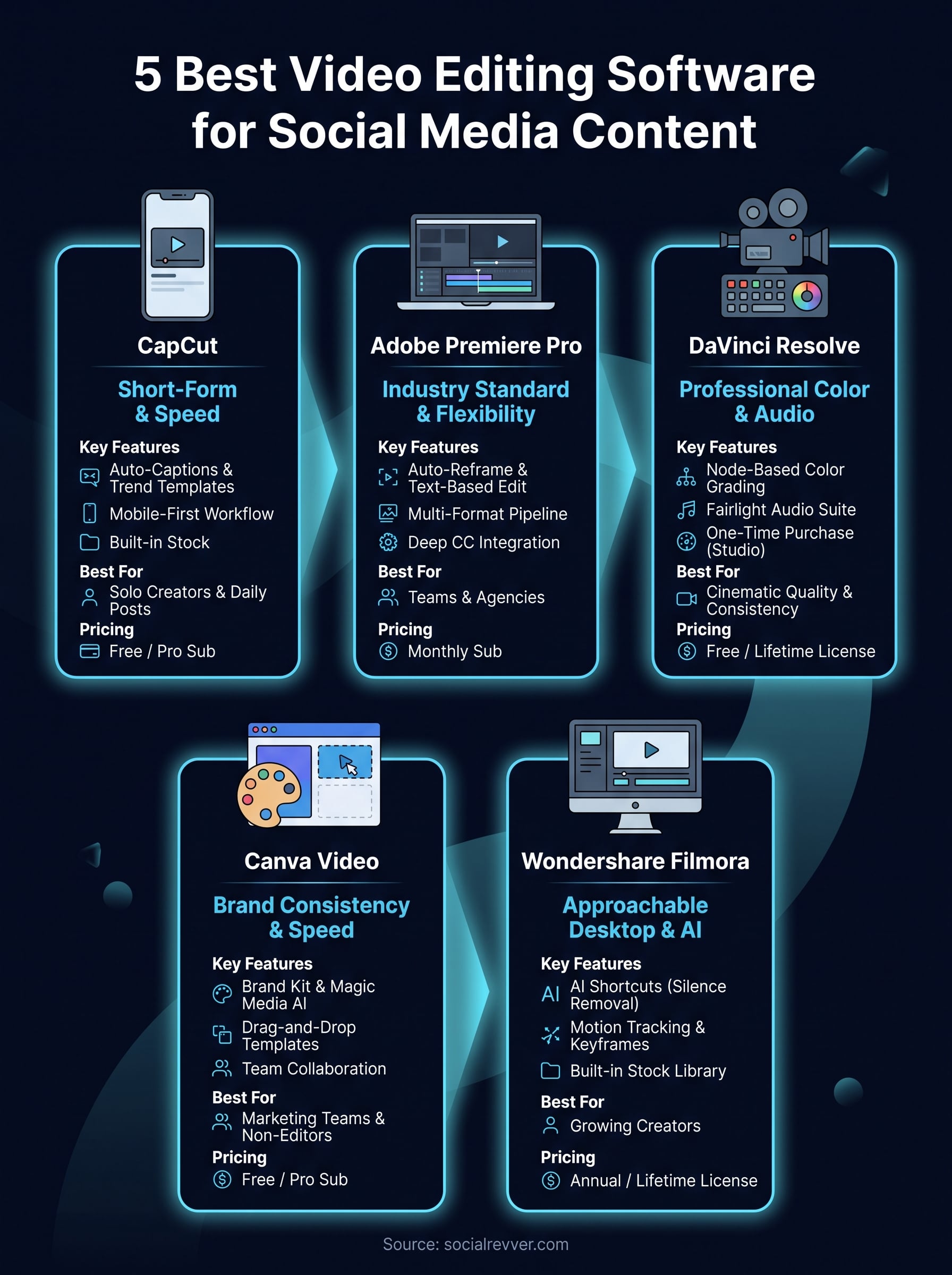
Pick based on your actual constraint, not the app with the longest feature list. CapCut wins on speed for daily posting, Premiere Pro wins when one shoot needs to become five deliverables, and DaVinci Resolve wins when color consistency matters more than turnaround time. Canva fits non-editors managing brand assets, and Filmora bridges the gap once CapCut feels too limited but Premiere feels like overkill.
Software only solves half the problem, though. The right tool still needs a strategy behind every script and a system that turns views into actual leads, which is where most solo setups stall out regardless of which app they're running. If editing software is starting to feel like busywork instead of growth, it might be time to hand the whole production pipeline to a team built for it. Get your free 40+ slide social media strategy and see what a managed system looks like next to a subscription.