
A solid Google Sheets content calendar template saves you from the chaos of publishing on the fly, no more scattered ideas across sticky notes, Slack threads, and forgotten drafts. But picking the right one matters. A bad template adds friction. A good one becomes your operational backbone for planning, scheduling, and actually shipping content consistently.
At SocialRevver, we build content systems for founders and business owners who need their organic social media to generate real pipeline, not just likes. Part of running that engine is structured planning and scheduling, which is exactly where a well-built content calendar earns its keep. We've seen firsthand how the right planning framework turns sporadic posting into a predictable publishing rhythm that compounds over time.
Whether you're mapping out short-form video drops, blog posts, email campaigns, or a mix of everything, Google Sheets gives you the flexibility to customize without paying for another SaaS tool. Below, you'll find 10 ready-to-use content calendar templates built for different workflows and team sizes, each one free to copy and start using today. We'll break down what each template does best, who it's for, and how to make it fit your specific process so you can stop planning to plan and start executing.
1. Simple monthly content calendar in Google Sheets
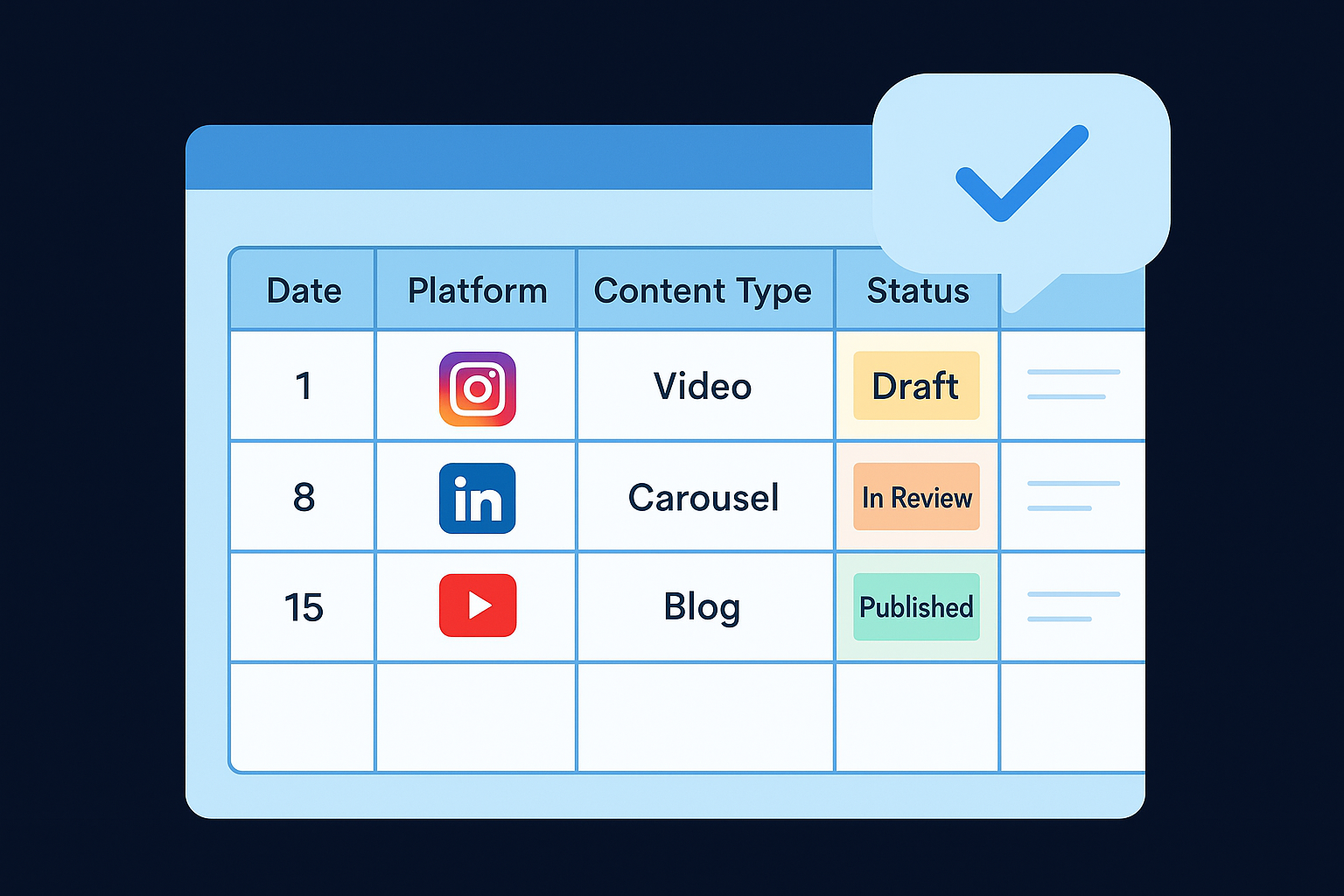
This Google Sheets content calendar template is the best starting point if you're building a planning system from scratch. It gives you a single-month grid view where each row represents a piece of content and each column tracks the details that matter: date, platform, content type, status, and notes. No formulas to untangle, no conditional logic to break. You open it, duplicate the tab for each new month, and start filling it in.
What it includes
The template covers the core fields every content operation needs. Dates and publishing slots sit in the first column, followed by platform, content format, copy or caption draft, and a simple status indicator like Draft, In Review, or Published.
- Date and publish time
- Platform (Instagram, LinkedIn, YouTube, etc.)
- Content type (video, carousel, blog, email)
- Copy or caption field
- Status tracker
- Notes column for links or asset references
Best for
This template fits solo creators and small teams who need structure without the overhead of a complex system. If you're publishing to two or three channels and managing content without a dedicated project management tool, this is the right level of detail.
A simple calendar you actually use beats a sophisticated one you abandon after week two.
Freelancers and early-stage founders building a consistent posting rhythm will get the most out of this format. It keeps the barrier to entry low so you spend time creating, not configuring.
How to customize it for different channels
Add a color-coded row system using Google Sheets' built-in conditional formatting to separate channels visually. Assign one color per platform so you can scan the week at a glance and spot any gaps in your posting schedule without reading every cell.
If you publish across four or more platforms, consider adding a separate tab per channel rather than filtering by column. This reduces row clutter and makes bulk scheduling easier when you're planning a full month of content across different formats and audiences.
Common mistakes and quick fixes
The most common mistake is treating the status column as optional. Leaving statuses blank makes it impossible to know what's ready to publish versus what's still a rough idea. Set a firm rule: nothing moves to the publishing slot without a confirmed status attached to it.
Overloading the notes column with full content briefs is another issue. Keep notes short, use a linked Google Doc for longer copy, and reference that document in the notes cell instead of pasting everything into one cramped field.
2. Backlinko content calendar template
The Backlinko content calendar template leans toward SEO-driven content planning, making it a stronger fit for teams running a blog or long-form content strategy alongside social. Compared to a basic monthly grid, this google sheets content calendar template adds fields specifically tied to search performance so you can track keyword targets and traffic goals from inside the same planning doc.
What it includes
This template combines editorial planning with SEO tracking fields in one view. You get columns for content topic, target keyword, publish date, content owner, status, and projected versus actual traffic metrics.
- Target keyword per post
- Publish date and content owner
- Content status (Planned, In Progress, Published)
- Traffic goal and performance tracking
- Notes for internal links and related posts
Best for
This template works best for content marketers and founders who treat their blog as a primary lead-generation channel. If you're publishing three or more long-form articles per month and tracking organic search growth, the built-in keyword and traffic columns save you from toggling between a calendar and a separate SEO tracker.
Planning content without tracking what it's supposed to rank for is the fastest way to produce high-effort posts that generate zero search traffic.
How to customize it for your workflow
Add a content pillar column to group posts by topic cluster. This makes it easier to see whether your publishing schedule is balanced across your core subject areas or heavily weighted toward one theme at the expense of others.
Common mistakes and quick fixes
Most teams fill in the keyword column but skip the traffic goal field entirely. Without a number to aim for, you have no way to evaluate whether a post performed well or underdelivered, which makes iterating on your content strategy nearly impossible.
3. Buffer social media calendar template for Google Sheets
The Buffer social media calendar google sheets content calendar template is structured specifically around multi-platform social publishing workflows. Where a basic monthly grid focuses on dates and formats, this template adds columns designed to track content through a production cycle, from first draft to final approval to scheduled post.
What it includes
Buffer's template organizes each piece of content across platform-specific rows with dedicated fields for caption copy, visual asset links, scheduled date and time, and post status. You also get a column for the assigned team member, which matters the moment more than one person touches a piece of content.
- Platform and content format
- Caption draft and asset link
- Scheduled date and time
- Assignee and approval status
- Notes for post-specific details
Best for
This template fits small-to-mid-size teams that publish to multiple social channels simultaneously. If you're managing content for Instagram, LinkedIn, and TikTok inside one shared doc, the built-in assignee and status fields prevent posts from slipping through the cracks between team members.
A shared calendar without clear ownership columns turns into a blame game the moment a deadline gets missed.
How to customize it for approvals and handoffs
Add a two-stage approval column with values like "Needs Review" and "Approved" to separate first-pass review from final sign-off. This small addition prevents the status column from becoming a catch-all that nobody trusts.
Common mistakes and quick fixes
The most common issue is leaving the asset link column empty until the last minute. Attach the Canva file, Google Drive folder, or video link as soon as the content enters the calendar so your editor or designer never has to chase down files before a publish deadline.
4. Hootsuite social media content calendar template
The Hootsuite google sheets content calendar template is built around the reality that most social media teams manage a mix of fresh content and recurring posts. It structures your calendar to hold both without one pushing the other out of the way, which makes it a practical choice for teams that want planning and publishing to happen inside a single document.
What it includes
This template organizes content by platform and week, with dedicated columns for content category, copy, asset links, scheduled date, and posting status. It also includes a section for tracking post performance after publishing, so you're not starting from zero when reviewing what worked at the end of each month.
- Platform and content format
- Caption or copy field
- Linked asset or creative file
- Scheduled date and status
- Post-performance notes column
Best for
This template fits social media managers and marketing teams handling high-volume posting across four or more platforms. If you review performance data regularly and want that feedback loop inside the same doc you use to plan, Hootsuite's layout saves you from bouncing between separate tracking sheets.
Building performance review into your calendar doc turns monthly reporting from a separate project into a two-minute column scan.
How to customize it for an evergreen content library
Add a dedicated "Evergreen" tab to store posts that can be recycled across months without edits. Pull from that tab when a scheduled slot opens up unexpectedly, so your calendar never runs dry.
Common mistakes and quick fixes
Teams often skip the performance notes column entirely after publishing. Fill it in within 48 hours of a post going live while the data is still fresh and easy to pull.
5. CoSchedule annual content calendar template spreadsheet
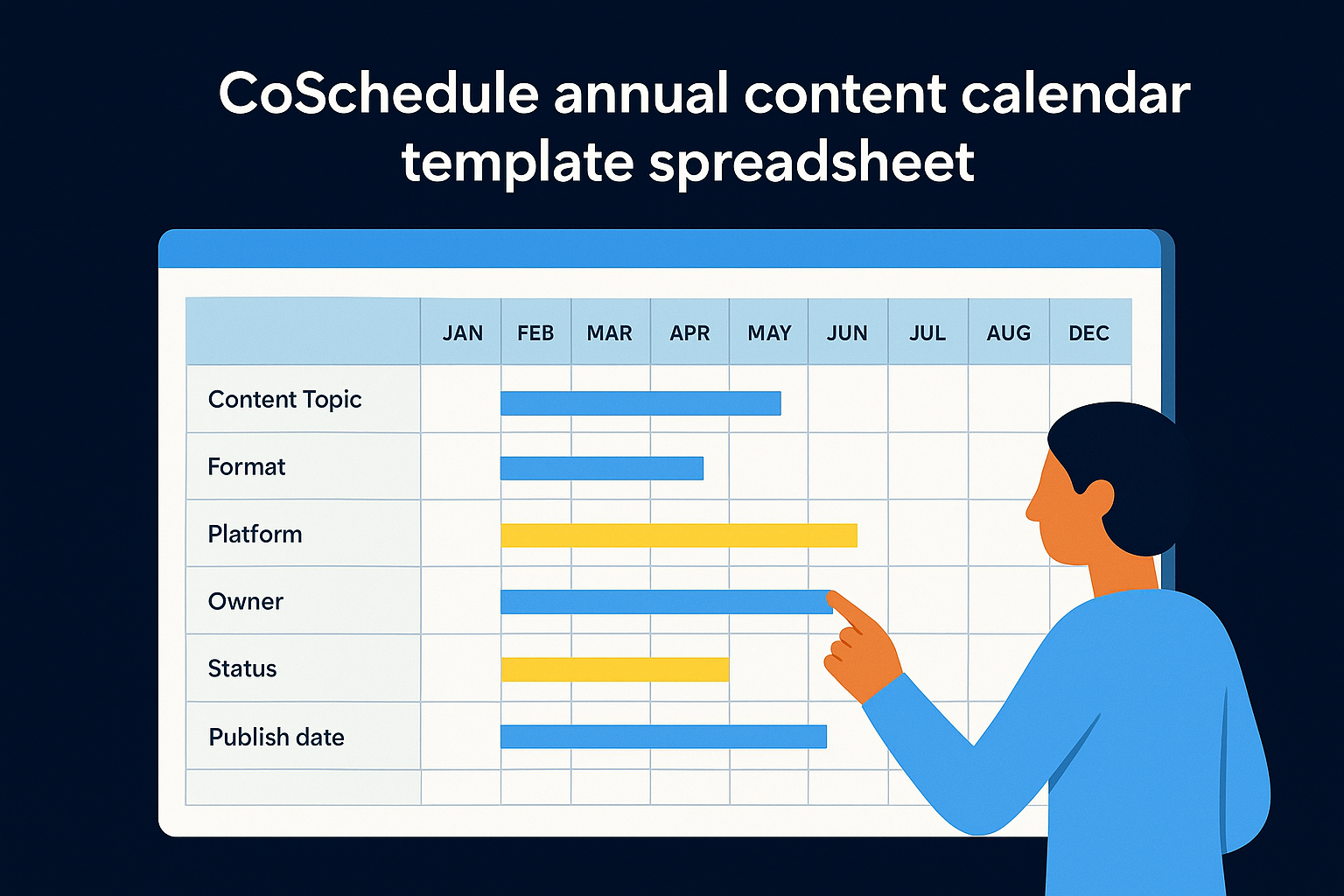
The CoSchedule annual content calendar template spreadsheet takes a longer planning horizon than most options on this list. Instead of organizing content month by month, it maps your entire publishing year across a single view, which makes it the right tool when you need to align content with business events, product launches, and seasonal campaigns well in advance.
What it includes
This google sheets content calendar template gives you a full 12-month grid with columns for content topic, format, platform, owner, status, and publish date. The annual layout lets you spot content gaps and scheduling conflicts across quarters before they become last-minute problems.
- Full 12-month planning grid
- Content topic and format columns
- Platform and channel assignment
- Owner and status fields
- Publish date with campaign tagging
Best for
This template fits marketing teams and founders running coordinated campaigns tied to specific seasons, industry events, or product cycles. If your content strategy needs to stay aligned with sales and revenue milestones, an annual view keeps everyone on the same page without constant calendar updates.
Planning at the annual level forces you to treat content as a strategic asset, not a weekly scramble.
How to customize it for campaigns and themes
Add a campaign label column to group related posts under a shared theme or initiative. Color-code each campaign using conditional formatting so your full-year view reveals which time periods are content-heavy and which months are underserved at a glance.
Common mistakes and quick fixes
The most common mistake is filling in the annual grid and never updating it. Block 30 minutes each month to reconcile what actually published against what you planned so the calendar stays an accurate reflection of your operation.
6. Semrush social media content template for Google Sheets
The Semrush google sheets content calendar template is built for teams that want their social content plan to stay connected to broader campaign data. It structures your calendar around tracking not just when content publishes, but how each post ties back to specific campaign goals and audience segments, which makes it more than a scheduling document.
What it includes
This template gives you platform-specific rows with columns for content topic, format, target audience, scheduled date, copy, and campaign tag field. The structure makes it easy to map posts back to a specific initiative without digging through separate tracking files.
- Platform and content format
- Target audience segment
- Campaign tag and content topic
- Caption or copy field
- Scheduled date and post status
Best for
This template works best for marketing teams running multiple campaigns simultaneously across different audience segments. If you need to see whether your content is balanced between awareness posts and conversion-focused content, the campaign tagging structure keeps that visibility built into the calendar rather than requiring a separate analysis doc.
Tagging posts by campaign goal turns your calendar from a scheduling tool into a strategic audit trail.
How to customize it with drop-downs and statuses
Add data validation drop-downs to your platform, status, and campaign columns using Google Sheets' built-in validation settings. Drop-downs eliminate typos and inconsistent entries that break filters later, so your team picks from a fixed list rather than free-typing every cell.
Common mistakes and quick fixes
Most teams skip the audience segment column entirely because it feels like extra admin work. Fill it in during the planning stage and you'll catch targeting gaps before a post goes live rather than spotting them during a monthly review.
7. Socially Powered content calendar template in Google Sheets
The Socially Powered google sheets content calendar template is designed around a detail most templates skip: content prompts built directly into the planning doc. Rather than leaving blank rows for you to fill in from scratch each week, this template seeds your calendar with post type suggestions and format ideas that reduce the creative friction of starting with nothing.
What it includes
This template organizes your content around post type categories alongside the standard scheduling fields, giving you a structured way to vary your content mix across the week.
- Post type labels (educational, promotional, engagement, behind-the-scenes)
- Platform and publish date columns
- Caption draft field with prompt text
- Status tracker and asset link column
Best for
This template works best for solo content creators and small business owners who struggle with blank-page paralysis when planning their content calendar each week. If your biggest bottleneck is deciding what to post rather than producing the content itself, the built-in prompts remove that barrier before it slows you down.
A calendar that tells you what type of post to create next is worth more than a perfect scheduling system you never fill in.
How to customize it with prompts and post types
Replace the default prompt text with your own recurring content pillars so the suggestions match your niche. Add a dedicated post type column with data validation drop-downs to keep your format choices consistent and filterable across the full month.
Common mistakes and quick fixes
The most common mistake is ignoring the post type column and treating every row as a blank template. Filling in the post type first forces you to plan your content mix intentionally rather than defaulting to the same format every day.
8. Loomly social media calendar template for Google Sheets
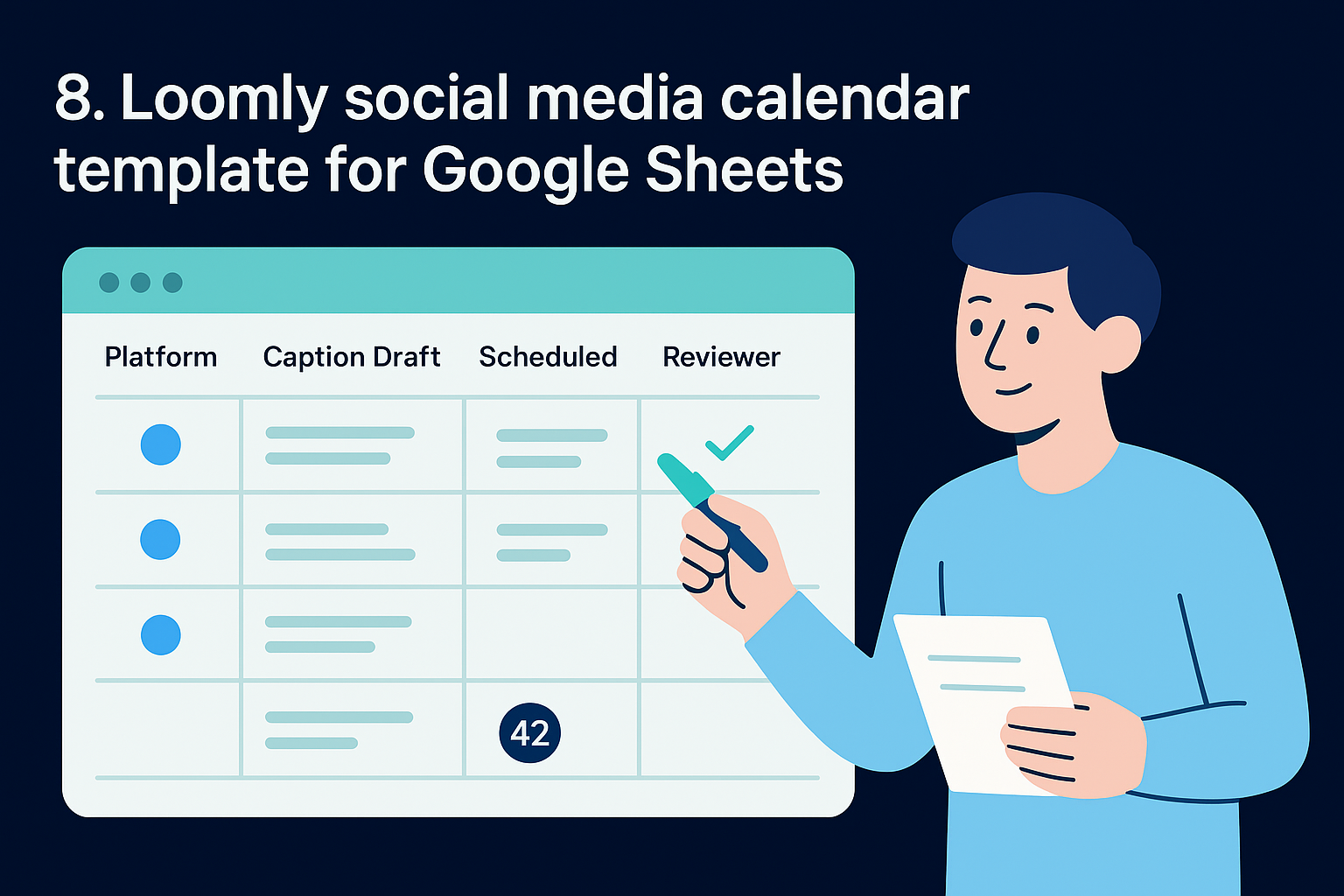
The Loomly google sheets content calendar template focuses on keeping content production organized around character limits and team feedback in the same document where you schedule posts. It's structured for teams that treat the review process as a formal step rather than a quick Slack message before publishing.
What it includes
This template tracks each post's copy length alongside its scheduled date, which matters when you're publishing to platforms with strict character limits like X or LinkedIn.
- Platform and content type
- Caption draft with character count tracking
- Scheduled date and time
- Reviewer name and feedback field
- Post status and asset link
Best for
This template fits content teams that run a formal review process before anything goes live. If your workflow involves a copywriter, a reviewer, and a final approver touching the same piece of content, the built-in feedback column keeps those handoffs documented inside a single shared file.
A template that tracks reviewer feedback inline cuts the back-and-forth email thread that slows every approval cycle down.
How to customize it for character limits and feedback
Add a formula-based character counter in the column next to your caption draft field using Google Sheets' LEN function. This flags any copy that exceeds platform limits before it reaches your scheduler, saving you from last-minute edits right before a post goes live.
Common mistakes and quick fixes
Most teams leave the feedback column blank after a post gets approved. Fill it in even briefly, because those notes become a useful reference when you audit what messaging landed well at the end of each quarter.
9. Smartsheet and Social Media Examiner templates
These two google sheets content calendar templates come from organizations that publish extensive content management resources, which means both are designed around real production workflows rather than generic spreadsheet layouts. Each one takes a slightly different angle on calendar structure, so they're worth reviewing side by side before you pick one to build on.
Smartsheet social media calendar template highlights
Smartsheet's template focuses on platform-by-platform row organization with clear columns for scheduled date, content type, copy, and asset status. It gives you a clean starting structure that scales well once you add custom columns for your specific channels and approval stages.
Social Media Examiner calendar template highlights
The Social Media Examiner template leans into content mix planning, with built-in category labels that push you to balance promotional, educational, and engagement posts across the week. Its layout makes imbalanced content schedules obvious at a glance, which helps you correct distribution problems before they affect reach.
Seeing your content mix broken down by category is often the fastest way to spot why your engagement numbers plateau week over week.
Best for
Both templates fit marketing teams and content managers handling consistent weekly publishing across multiple platforms. If your team runs regular content reviews, either layout gives you a solid foundation to work from without building column structures from scratch.
How to customize these for high-volume posting
Add a volume tracking row at the top of each week to count total scheduled posts per platform. This keeps your publishing pace visible without requiring a separate analytics document.
Common mistakes and quick fixes
The most common mistake is treating these templates as finished systems on day one. Audit your column structure after the first two weeks and remove any field your team consistently leaves blank.
Next steps
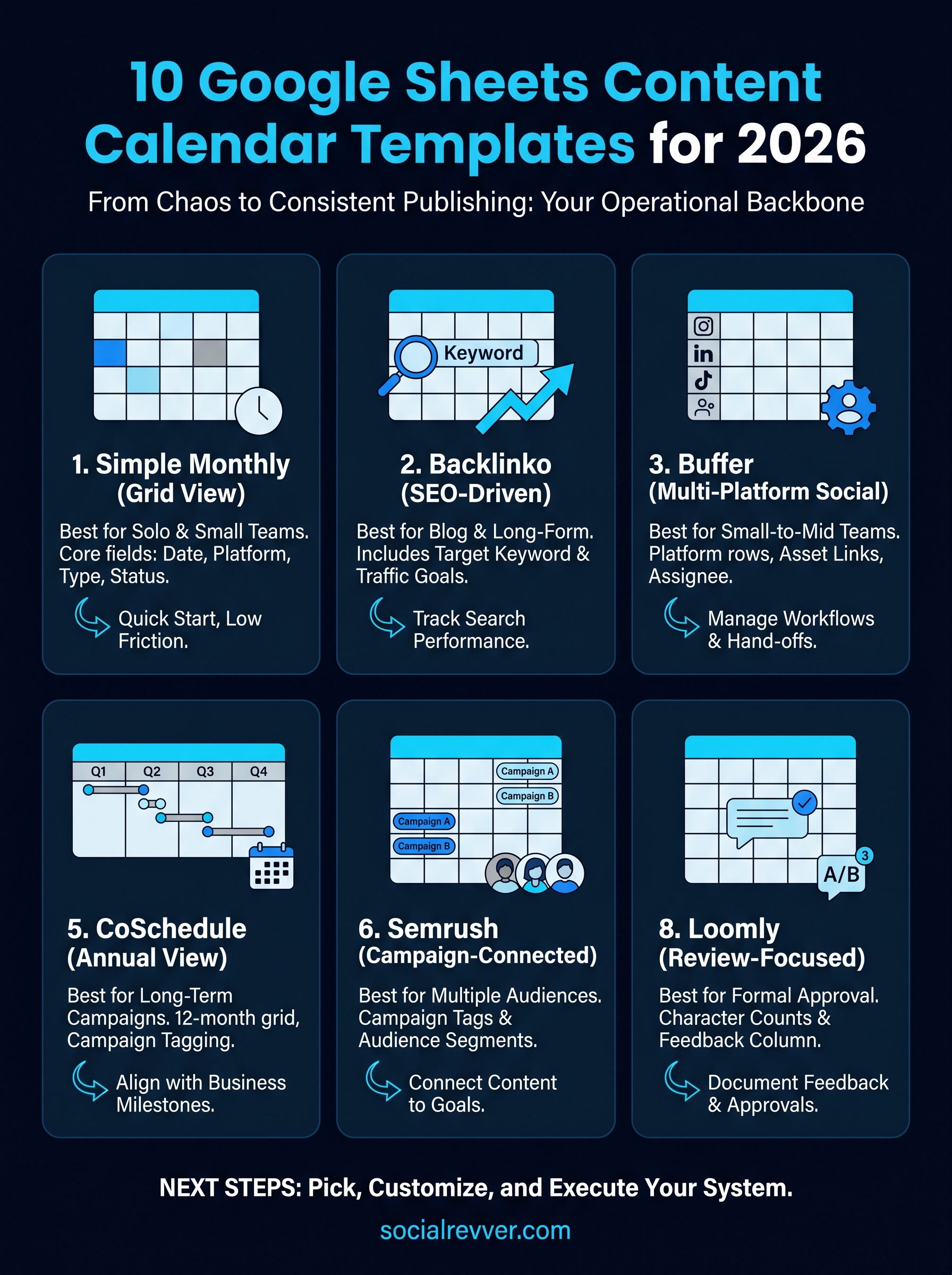
Every google sheets content calendar template on this list gives you a different angle on the same core problem: getting content out of your head and into a repeatable publishing system. Pick the one that matches your team size and publishing volume, copy it into your Drive, and customize it enough to fit your actual workflow before you add any complexity.
Running a calendar well is only half the equation. The other half is building content that consistently generates attention and converts that attention into real business outcomes. That requires more than a planning doc; it requires a system that operates on strategy, production discipline, and data-driven optimization running together.
If you want that kind of infrastructure without building it yourself, our team at SocialRevver handles the entire engine for you, from strategy to scripting to distribution. Apply to work with us and get your free 40+ slide social media strategy.